
Jobs are the main work records. Open one to see address, customer contact, tasks, notes, and status controls.
Steps
1. Browse your jobs
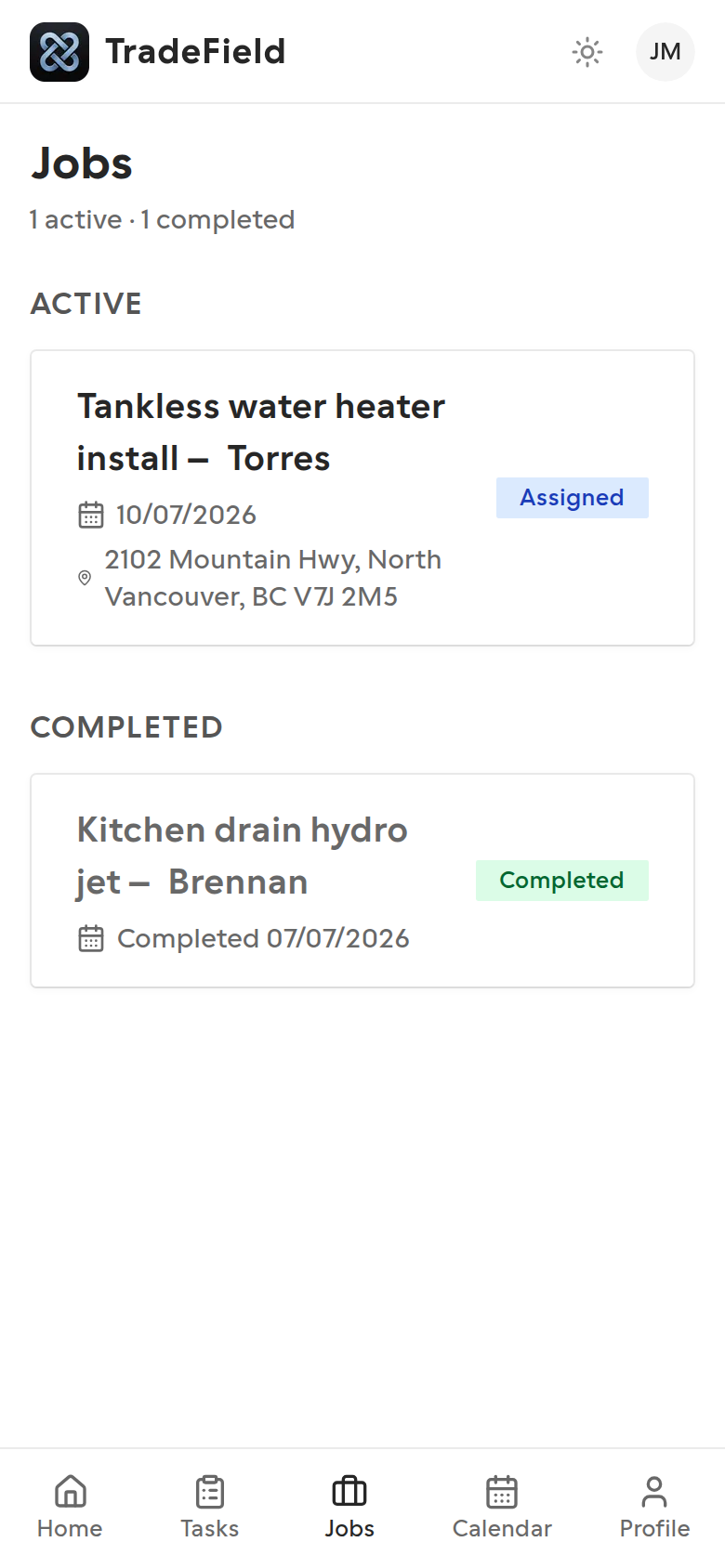
Jobs lists active work first, then completed. Each card shows status, date, and location when available.
2. Open a job
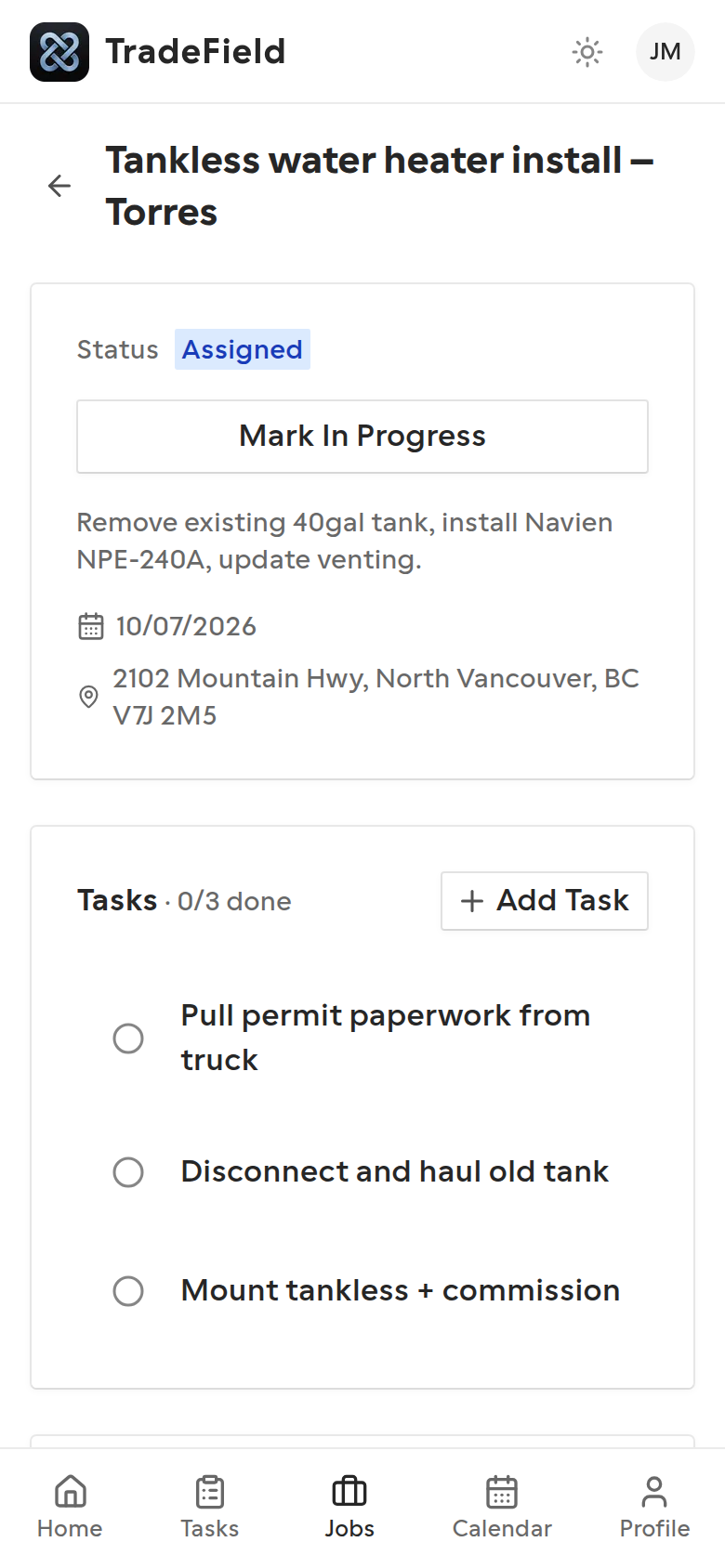
Tap a job to open details: status, assignment, tasks, and notes.
3. Update job status
Move the job to in progress when you start, and completed when finished. Status changes are visible to owners and admins immediately.
4. Add notes and photos
Use Notes to record site findings. Attach photos when you need proof of before/after work — uploads queue if the connection drops briefly.
Tips
- Confirm the address and customer phone before you leave for the job.
- If a booking shows on Home but no job exists yet, ask the office to create or assign the job.
Related guides
Last updated 2026-07-08. Contact support if you need more help.