
The tech portal is a mobile-first workspace for field work. After you sign in as a technician, TradeField opens this view instead of the owner dashboard.
Before you start
- Invite accepted
- Signed in as a technician
Steps
1. Open the Home screen
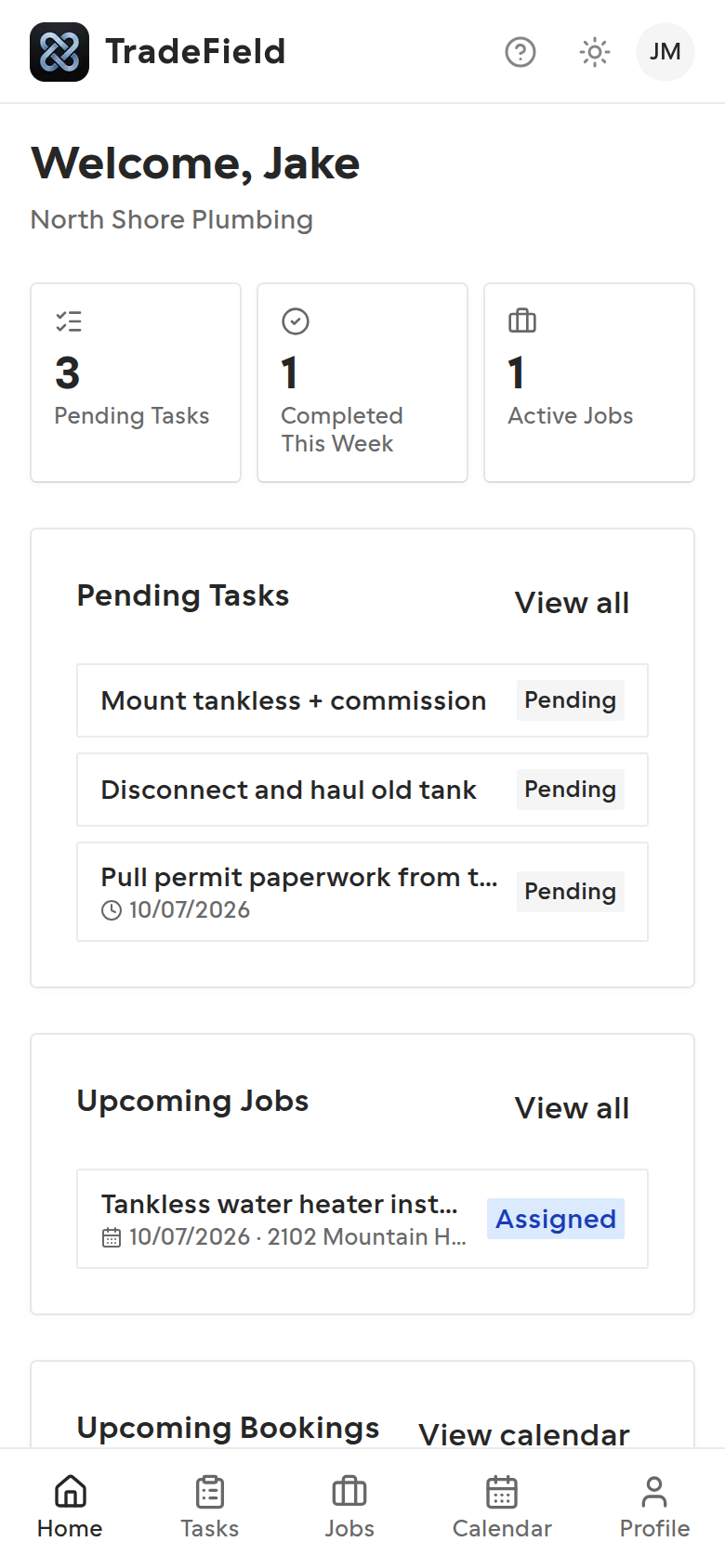
Home shows counts for open tasks, active jobs, and upcoming bookings. Scroll down for today's schedule and recent activity.
2. Use the bottom navigation
On phones, switch between Home, Tasks, Jobs, Calendar, and Profile from the bar at the bottom. On larger screens the same links appear in the top header.
3. Install as an app (optional)
If prompted, add TradeField to your home screen. The PWA keeps working with a signed-in session and can queue changes when you're briefly offline.
Tips
- Sign in once while online before relying on offline mode on a new phone.
- Use Help from the header (question mark) any time you need these guides.
Related guides
Last updated 2026-07-08. Contact support if you need more help.